This next tip is all about the background images — especially those you find in the hero section of any page.
Images are one of the biggest factors when it comes to speed, and typically when we create a hero image for our website we’re creating it at a full resolution of something like 1920px wide so it looks great on desktop.
But phones are significantly smaller than that, and loading in an image that’s 3 or 4 times too big can have a serious negative impact on your performance — especially the mobile numbers.
But GenerateBlocks Pro has a solution for this — it’s called “advanced backgrounds”.
With this option, you can select a completely different image file for desktop, tablet, or mobile (and any combination of those three).
Let’s take a look at how it works.
In this hero section, I have a nice background image that stretches the full width of the viewport – which in this case is 1920px wide.
Saved as a JPG straight out of Photoshop (at the quality level of 7), this image, at 1920px, is 195KB.
But if I reduce the width of this image down to 768px (the widest it will ever be on the mobile breakpoint for GeneratePress), the file size dramatically reduces to 52KB.
That’s a 93% reduction in file size!
Reductions like this make a significant impact on your performance.
So, let’s take a look at how we set this up to show the appropriate image for each breakpoint.
Instead of putting the image inside the ‘Image URL’ field, we’re going to use the “Advanced” settings.
Just toggle on the Advanced toggle and click the wrench icon to get started.
We’ll set up the desktop version first.
Hit ‘Add Background’, then under type, choose ‘Image’.
Under the device dropdown, choose desktop.
Now you can hit the browse button to select the desktop version of your image.
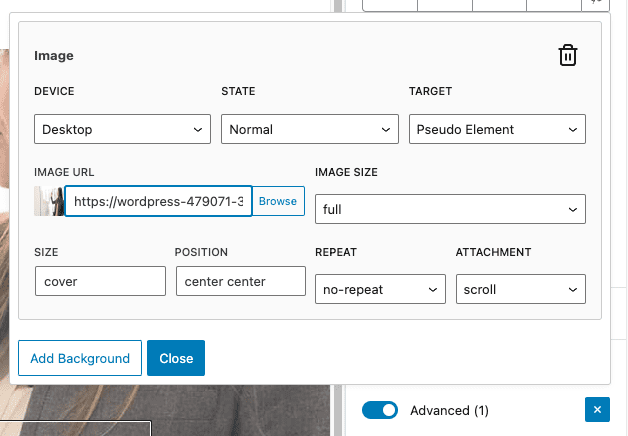
Of course, you have all the size and position settings available to you here, but we’re just going to leave all those at default.
With the advanced background window still open, hit the ‘Add Background’ again, but this time choose ‘tablet’ under the device dropdown.
Now, browse and find the tablet-sized version of your image (which should be no bigger than 1024px wide).
Lastly, hit ‘Add Background’ again, and this time choose mobile.
Select the mobile version of your image, and hit close.
Now, GenerateBlocks is going to serve the most appropriately sized version of your image based on the breakpoint.
Yes, this is a little more work — but when it comes to hero sections, which are above-the-fold content, it’s worth the extra two minutes of setup to save 90%+ on file size.
Another great benefit to using advanced backgrounds is you can select completely different images if you want. I’ve found in some cases images that work great on desktop are too messy and distracting on mobile (where the text is typically taking up the full width of the screen).
With the advanced background method, you can choose a completely different image and improve your mobile designs.